vfx logo

Github ArtStation ShaderToy HMI LinkedIn

# Variable Rate Shading Introducing a new VRS API for Unity, to balance between shading performance and fidelity. To learn more, check the official announcement: https://discussions.unity.com/t/optimize-renderer-features-with-variable-rate-shading-in-unity-6-1

vrs demo (edge)

vrs demo (motion)

- Motion-based VRS: https://github.com/Unity-Technologies/shading-rate-demo - Egde-based VRS: https://github.com/eldnach/vrs-edge Setting a uniform (screen-wide) 2x2 shading rate results in visual artifacts when zoomed:

2x2 shading rate

By applying edge detection to the shading rate, we avoid shading artifacts around geometry edges:

edge based shading rate


# Sentis - Edge Detection Filter Edge Detection (Sobel) filter created in pytorch, exported using .ONNX and executed in Unity via the Sentis API. The "Sobel.cs" script loads the model and converts a RenderTexture into a Tensor, to be used as the model's input. The model's output is then converted back into a RenderTexture.

shrine

bridge

Github: https://github.com/eldnach/sentis-edge-detect/ The Sentis Sobel filter is using a 256x256 input tensor, and is executing at around ~0.22ms:

sentis sobel

## Requirements: - Unity 6.1 - Sentis (version 2.1.1, obtained from the Unity Package Manager)

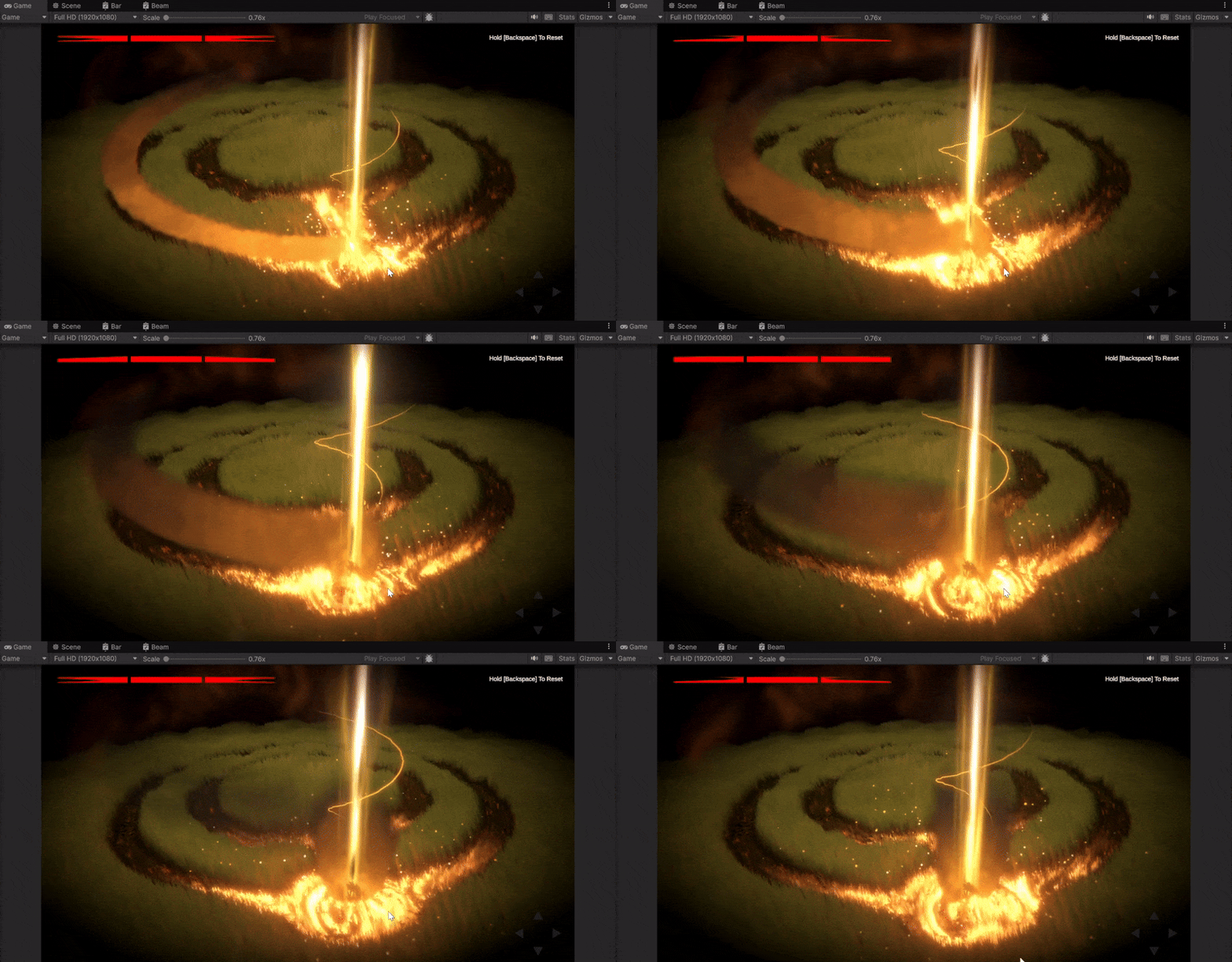
# Procedural VFX Demo Little demo implementing custom passes, compute and indirect rendering. Besides being fun and dynamic, procedural drawing enables GPU-side culling, while reducing the need for prebaked assets.
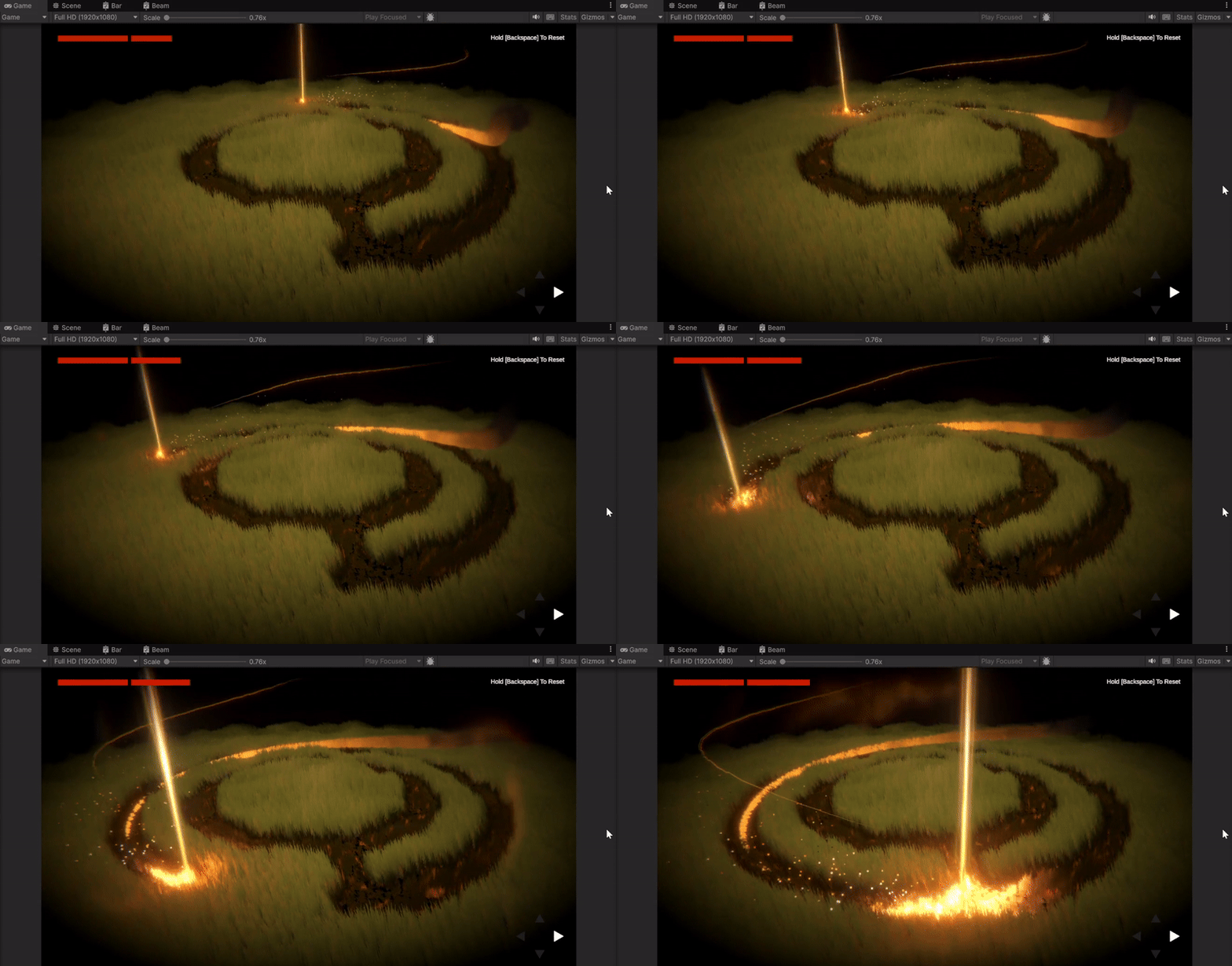
crop-circles_1

crop-circles_2 Particle effects created using shader and VFX graph:
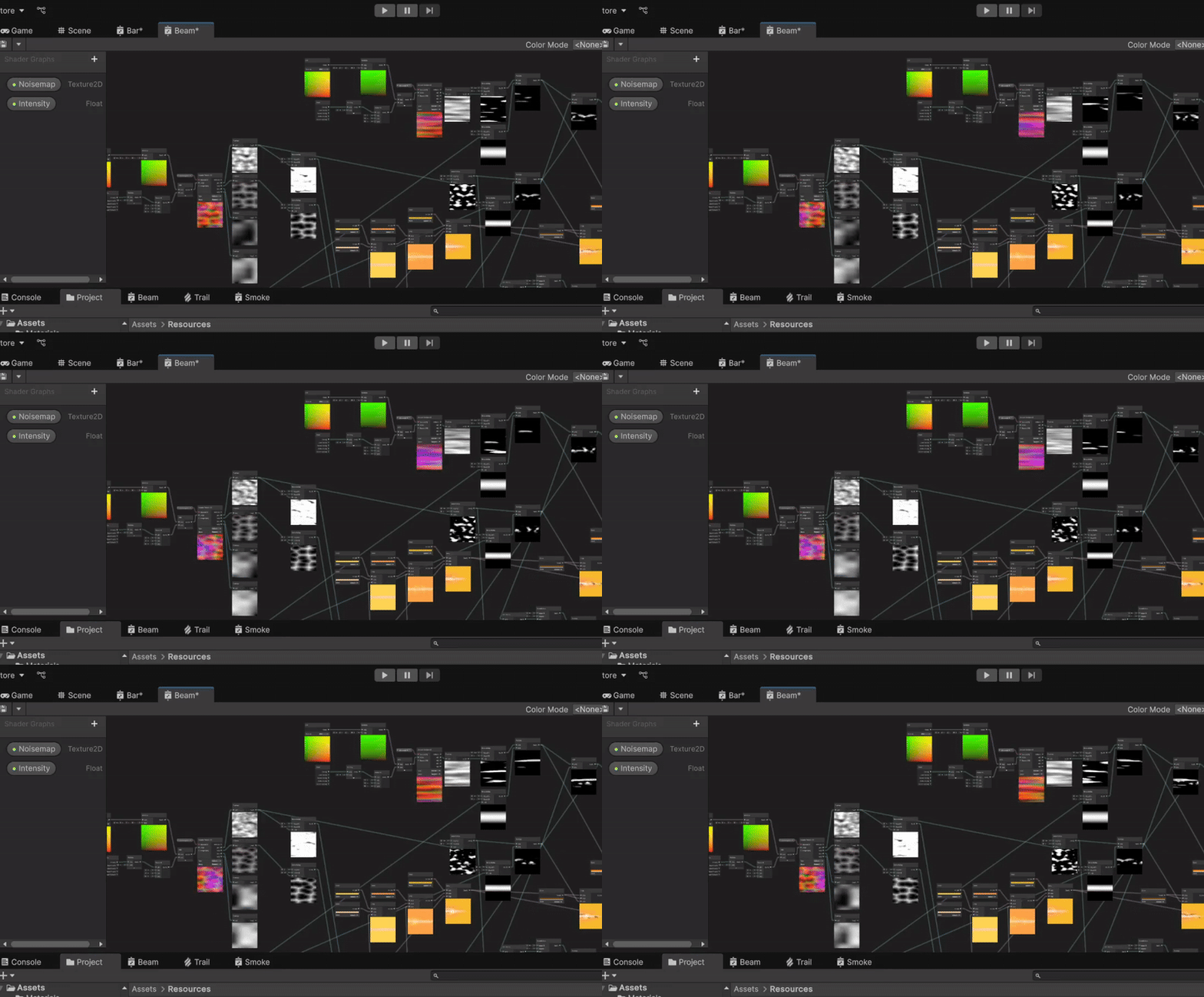
shader


# URP Ray Traced Shadows (Custom Renderer Feature) Live GDC 2024 demo (~36:00): https://gdcvault.com/play/1034719/Unity-Developer-Summit-Rendering-Customizationt

InlineRT

Github: https://github.com/eldnach/urp-raytraced-shadows-port Universal Render Pipeline port of Ionut Nedelcu's Inline Ray Traced Shadows. ## Requirements Supported in Unity 2023.3b and later. ## Usage In the active Universal Renderer Asset settings, add and enable the "Ray Traced Shadow Pass" Renderer Feature.

# NoiseKit - Procedural Volumetric Texture Generation Procedural generation of tileable volumetric textures in the Unity Editor. Choose from available noise types, edit noise properties, perform channel packing and export as 3D/2D textures.

NoiseComposition

Github: https://github.com/eldnach/noisekit ## Requirements NoiseKit is supported in Unity 2021 LTS and later. Compute shader support is required. ## Setup 1. In the Unity Editor, go to `Window > Package Manager` 2. On the top left on the Package Manager window, click on `+ > Add package from git URL...` 3. Add the following URL "https://github.com/eldnach/noisekit.git" and click `Add` Once installed, open the NoiseKit panel from the main toolbar: `Window > NoiseKit > Open` ## Noise Types The following noise types are currently supported: - Value - Perlin - Cellular - Fractal Value - Fractal Perlin ## Controls `Mode`: toggle between 2D and 3D noise generation. `Noise Selection`: add or remove noise instances, and set the desired noise type. `Noise Editor`: control the available noise properties (per instance). `Channels`: add or remove noise channels, and perform channel packing. `Viewport`: preview the generated noise texture and per-channel masks. `Export`: set the exported texture's precision (8/16 bit per channel), resolution and file path.

NoiseControls

Additional noise types may be added.

# Indirect Rendering and GPU Culling This sample implementes a procedural (indirect) Scriptable Render Pass, which is instantiated and enequeued within the Univesral Render Pipeline.

DrawIndirect

Indirect Drawing allows to procedurally generate geometry and drawing parameter data using compute shaders. This technique can be used in order to massively-parallelize the transformation, culling, and rendering of complex geometries. In this example, a compute shader is used in order to procedurally generate and transform a large amount of vertices and mesh instances. A final instance-based culling dispatch is executed once per frame, in order to procedurally render any visible instances:

GPUCullling

## Renderer Feature You can enable and configure the procedural rendering pass by adding a "Procedural Rendering Feature" to the active UniversalRenderer.asset:

RendererFeature

The renderer feature's settings can be used to load an input mesh, configure the per-instance mesh count, and set the total instance count. Optional heightmap, wind deformation and camera-based repulsion can be enabled. Github: https://github.com/eldnach/indirect-rendering

# Shader Variant Analysis Track and manage shader permutations in the Unity Editor: * Trace the shader variants generated by your project at build time. * Analyze the traces and identify Which shaders and keywords generate the most permutations. * Identify effective ways to reduce shader build times.

ShaderVariants

Github: https://github.com/eldnach/shader-variant-analysis The Unity Editor generates and compiles a large amount of shader permutations at build time, based on the amount of Shader Keywords declared and evaluated in shaders. This mechanism provides runtime control over shader functionality, while maintaing optimal shader execution performance. Shader variant generation contributes to an expontential growth in project build times, depending on the amount of shader keywords and render pipeline features enabled:

ShaderBuiild

It is advised to monitor the project's shader variant generation, and ensure no unnecessary variants are created at project build time. For more information on Unity's shader variant generation see https://blog.unity.com/engine-platform/2021-lts-improvements-to-shader-build-times-and-memory-usage ## Requirements Supported in Unity 2021 LTS and later. ## Setup 1. Clone the package repository "https://github.com/eldnach/shader-variant-analysis" 2. In the Unity Editor, go to `Window > Package Manager` 3. In the top left of the Package Manager window, click on `+ > Add package from disk` 4. Add the package directory Once installed, go to `Window > Analysis > Shader Variant Analysis`. ## Usage Enable the "Trace Next Build" setting (`Shader Variant Analysis > Build Settings > Trace Next Build`), in order to record your project's shader generation at build time. The trace file will be saved in your project's Asset folder, using the specified name:

BuildSettings

Initiate a project build as usual. Once the build is complete, load the trace (`Shader Variant Analysis > Import Settings > Load Traces`) and analyze the result. The `Tracked Shaders` panel will list all the shader included in the build, along with their respective variant counts.

TrackedShadesr

You can expand the `Keywords` dropodown, in order to list all the keywords declared in a shader, and their contribution towards variant generation. Keyword tool tips reveal the render pipeline feature which enables each keyword.

TrackedKeywords

In the above example, the "_ADDITIONAL_LIGHTS_SHADOWS" keyword is included in a large number of variants. This keyword is enabled via the "Additional Lights/Cast Shadows" settings in the Universal Render Pipeline Asset. Disabling graphics features in the project and render pipeline settings will allow the Unity Editor to filter the associated keywords and reduce shader build time. The `Variants` dropdown reveals a detailed view on each variant generated by shader, along with the variant's subshader, pass, stage, platform and keyword set:

TrackedVariants


# Unity Shader Performance Metrics Offline compilation and analysis of ShaderLab and ShaderGraph shaders, using the Mali Offline Shader Compiler:

ShaderPerf

Github: https://github.com/eldnach/shader-perf-metrics ## Requirements Supported in Unity 2021 LTS and later. Pre-installation of the Mali Offline Shader Compiler is required: https://developer.arm.com/Tools%20and%20Software/Mali%20Offline%20Compiler ## Setup 1. In the Unity Editor, go to `Window > Package Manager` 2. On the top left on the Package Manager window, click on `+ > Add package from git URL...` 3. Add the following URL "https://github.com/eldnach/unity-shader-perf.git" and click `Add` Once installed, go to `Window > Shader Performance Metrics > Open`. ## Shader Settings * **Shader:** Select a valid ShaderLab or ShaderGraph shader to compile and anaylize. * **Subshader:** Select the relevant Subshader index, out of the selected shader's available subshaders. * **Pass:** Select the relevant Pass index, out of the selected subshader's available passes. * **Keywords:** Add a list of shader keywords to enable, in order to compile and analyze a specific shader variant. Refer to the Unity documentation for more information on [shader variants](https://docs.unity3d.com/Manual/shader-variants.html). ## Compiler Settings * **Compiler:** Select the desire offline shader compiler to use. At the moment, the only supported compiler is "MALIOC". * **Compiler Path:** Specify the absolute path to the selected compiler's executable. * **GPU:** Select a target GPU provided by the selected compiler. * **Graphics API:** Select a target graphics API. * **Build Target:** Select a Unity build target. ## Compiler Report * **Source/Disassembly:** View the shader's source (glsl) or disassembly (spir-v). * **Metrics:** Instruction cycle counts reported by the compiler (arithmetic, load/store, texture...). * **Resources and Properties:** Additional insights reported by the compiler (register usage, 16bit-arithmetic, late z-test...).

# Docker web server configuration for Unity Web Players: A simple guide for utilizing Docker and Nginx in order locally host and develop Unity Web Players.

WebPlayer

Github: https://github.com/eldnach/docker-nginx-unity This sample modifies the Nginx server configuration file (`nginx.conf`), in order to serve Unity's (gzip/brotli) precompressed files and accelerate loading times:

WebPlayer

## Instructions 1. Before starting, please verify that Docker is installed and running (https://docs.docker.com/get-docker/). 2. Create and navigate to a new project folder. Copy the contents of this repostiory to the root of your newly created project folder. 3. Rename the docker file (`project/docker/project-name.Dockerfile`) and edit the docker-compose file to match the new project's name (`project/docker-compose.yml`)

DockerCompose

4. To reduce application loading times, ensure that Brotli/Gzip compression is enabled in your Unity project's Player Settings (`ProjectSettings -> Player -> Publishing Settings -> Compression Format`), and that "Decompression Fallback" is disabled:

PlayerSettings

5. This repository includes a sample Unity Player at the webplayer directory (`project-folder/webplayer`). To overrwrite the project, build a Unity Web Player and copy the build folder's contents to this directory. 6. Once the web player folder is ready, open a terminal at the project's root, and build a docker image using the following command: "docker build -t :local -f docker/.Dockerfile ." 7. Print and copy the docker image ID using the "docker images" command:

Docker Images

8. Run the docker container using the newly built docker image: "docker run -p 127.0.0.1:hport:cport imageid". Note: You can set both hport (host-port) and cport (container-port) to 80. 9. Once the docker container is running, open a web browser and navigate to "127.0.0.1:hport" in order to launch the web player:

WebPlayer

Note: You can open the developer tools in order to verify that Unity pre-compressed files have been served with the correct `Content-Encoding` header (gzip/br):

WebPlayer